
Screenshots

App details
- Updated
- Nov 20, 2024
- Language
- English
- Developer
- alesimula
- Category
- Mobile
SoftPas in:
This product is also available in the following languages:
About WSA-pacman
Download WSA-pacman – install Android apps on Windows, WSA, Windows Subsystem for Android, APK installer, Android app manager
Overview
WSA-pacman is a Windows-based utility designed to simplify the installation and management of Android applications through the Windows Subsystem for Android (WSA). It serves as a bridge between the Windows operating system and the Android environment, streamlining the process of handling APK files without requiring users to engage with command-line tools. This application targets developers, power users, and anyone seeking a more accessible way to run Android apps on their Windows devices. By eliminating the need for technical command inputs, WSA-pacman lowers the barrier to entry for users who may find WSA configuration complex or intimidating.
The app addresses common pain points such as manual APK deployment, missing WSA dependencies, and difficult app management workflows. It is particularly useful for users who want to quickly test Android apps, access mobile-only services, or expand their productivity toolkit with Android-based tools. In the broader app ecosystem, WSA-pacman fills a niche by offering a lightweight, dedicated solution for managing Android app integration on Windows. The developer, Jason K. Menard, has focused on usability and reliability, creating a tool that prioritizes user experience over complexity. Although the developer did not provide additional technical details, the app’s core functionality is clearly aligned with the growing demand for seamless cross-platform app execution.
Key Features & Functionality
- Simplified APK Installation: WSA-pacman enables users to install Android apps by simply dragging and dropping APK files into the interface. It automatically handles the underlying WSA communication, removing the need for manual terminal commands.
- Direct App Management: Users can uninstall installed apps and access basic Android settings directly from the application, reducing the need to navigate through system-level configurations.
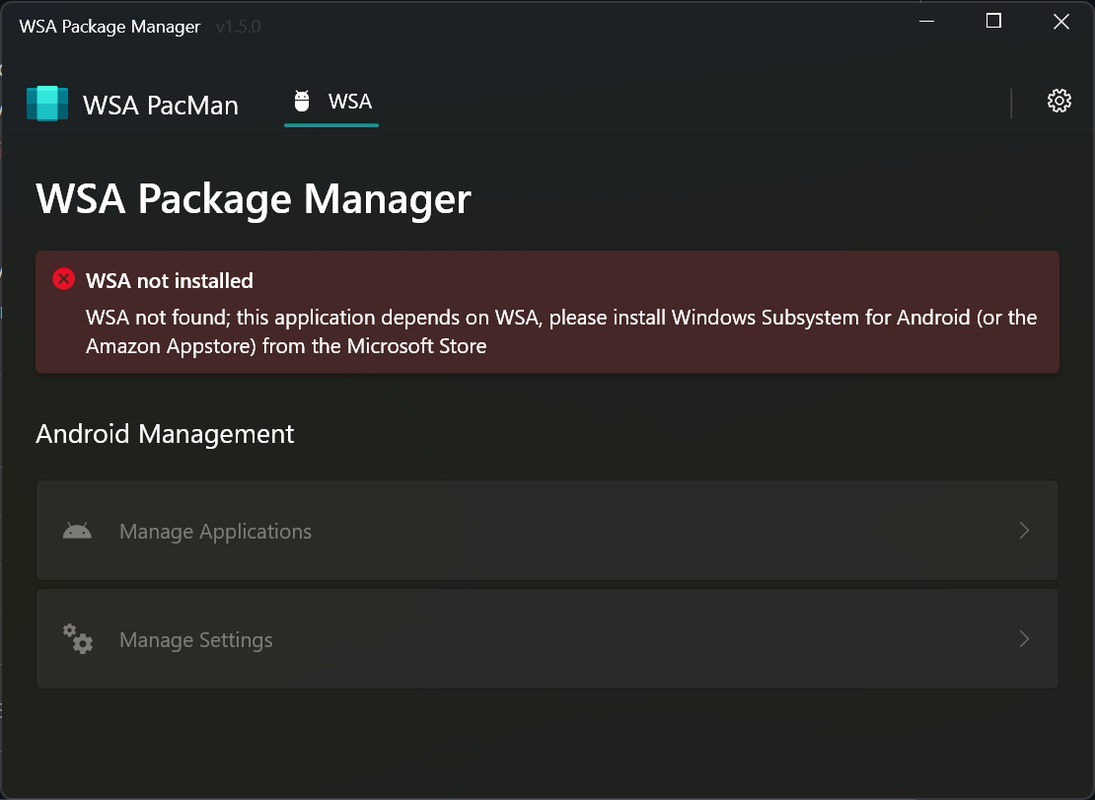
- User-Friendly Interface: The interface includes real-time notifications for missing WSA installations or disabled virtualization, guiding users through essential setup steps with minimal friction.
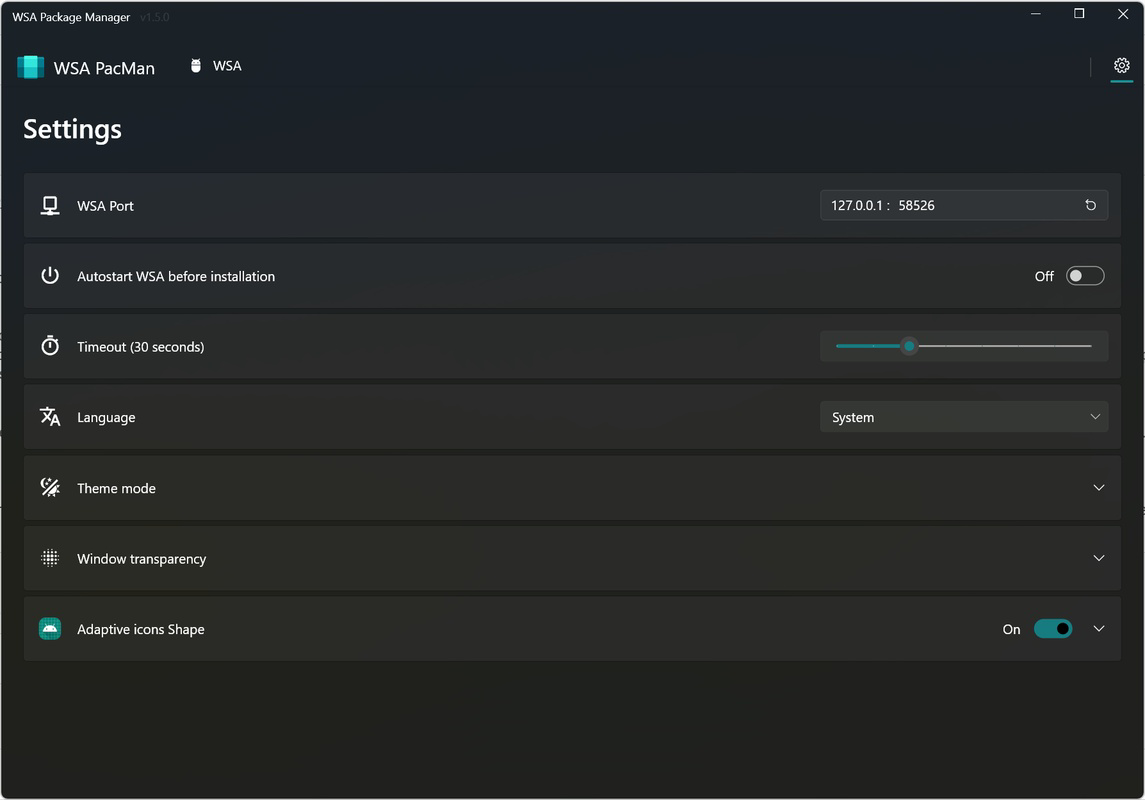
- Automatic WSA Configuration: The app can be configured to launch WSA automatically before installing any app, ensuring the Android environment is ready and reducing wait times.
- Quick App Addition: Once WSA is active, users can rapidly add new apps to their Android environment, making it easy to expand their app library without interruption.
For example, a user looking to install a mobile productivity app like a note-taking tool can simply drag the APK file into WSA-pacman. The app will verify WSA status, launch it if needed, and complete the installation in seconds. This workflow is ideal for users who frequently test or use Android apps on their Windows machines. The integration of automated checks and intuitive controls enhances usability, especially for those unfamiliar with system-level configurations.
Interface, UX & Performance
WSA-pacman features a clean, minimalist interface that emphasizes functionality and clarity. The layout is centered around a primary file drop zone, with status indicators and action buttons arranged for easy access. Navigation is straightforward, relying on a single main window with contextual prompts that guide users through each step. The visual design avoids clutter, using consistent spacing, legible typography, and intuitive icons to enhance readability and reduce cognitive load.
Although the developer did not list formal performance metrics, the application’s lightweight footprint of 24.6 MB suggests efficient resource usage. Users can expect responsive interactions, with minimal lag during file processing and status updates. The app appears to maintain stability during typical use cases, such as installing multiple APKs or managing app settings. It does not appear to consume excessive system resources, which is crucial for maintaining overall system performance. The interface remains responsive even on lower-end hardware, though specific compatibility details were not disclosed. Overall, the UX is optimized for speed and ease of use, aligning with the tool’s goal of simplifying a technically complex process.
Platform Compatibility & Technical Requirements
WSA-pacman is designed for the Windows platform and requires the Windows Subsystem for Android to function. It is compatible with Windows 10 and Windows 11, though specific OS version requirements were not listed. The application has a file size of 24.6 MB, making it a lightweight tool that can be installed quickly on most systems. It is available as a free download, with no in-app purchases or subscription models.
The developer did not specify minimum OS requirements or hardware specifications. Compatibility information was not fully disclosed. Users are advised to ensure that WSA is properly installed and that virtualization is enabled in the BIOS/UEFI settings. Without these prerequisites, the app may not function as intended. The absence of detailed system requirements means users should verify their environment before installation, especially if encountering setup issues.
Pros and Cons
Pros
- Eliminates the need for command-line operations when installing Android apps on Windows.
- Intuitive interface suitable for users with minimal technical experience.
- Automatically checks and configures WSA before installation.
- Lightweight at just 24.6 MB, minimizing storage impact.
- Free to download and use with no hidden costs.
Cons
- Requires Windows Subsystem for Android to be installed and configured.
- Specific OS version compatibility was not disclosed.
- Virtualization must be enabled in BIOS/UEFI, which may not be accessible to all users.
- Limited to managing Android apps via WSA—no support for other Android emulators.
- Developer did not provide update frequency or future roadmap details.
FAQ
Is WSA-pacman safe to use?
Yes, WSA-pacman is a legitimate tool developed by Jason K. Menard. It operates within the Windows Subsystem for Android environment and does not require elevated permissions beyond what is necessary for WSA integration. As with any third-party tool, users should download it from trusted sources.
Can I use WSA-pacman on Windows 10?
WSA-pacman is designed for Windows 10 and Windows 11. However, specific version compatibility was not disclosed. Users should ensure that WSA is enabled and functioning on their system.
Do I need to enable virtualization in BIOS?
Yes, virtualization must be enabled in your system’s BIOS/UEFI settings for WSA to function. WSA-pacman will notify users if this is not detected during setup.
Is WSA-pacman available for macOS or Linux?
Currently, WSA-pacman is only available for Windows. It is not compatible with macOS or Linux operating systems.
How often does WSA-pacman receive updates?
The developer did not specify the update frequency. Users are advised to check the official source regularly for new versions and improvements.
Final Thoughts
WSA-pacman stands out as a practical, no-frills solution for users who want to install and manage Android apps on Windows without diving into technical complexities. Its clean interface, automated workflows, and focus on usability make it a valuable addition to the Windows productivity toolkit. While it requires WSA and virtualization to function, the app handles these prerequisites with helpful guidance, minimizing setup friction. It is especially beneficial for developers, testers, and casual users who need quick access to Android applications on their desktops. With its free model and minimal system impact, WSA-pacman delivers strong value for its intended purpose. For anyone navigating the Windows Subsystem for Android ecosystem, this tool offers a streamlined, reliable path to Android app integration.
Download WSA-pacman now
Guides & Tutorials
How to install WSA-pacman
- Click the Download button above.
- Once redirected, accept the terms and click Install.
- Wait for the WSA-pacman download to finish on your device.
How to use WSA-pacman
This software is primarily used for its core features described above. Open the app after installation to explore its capabilities.
User Reviews
No reviews yet. Be the first to share your experience.
You may also like
more
Que no te pillen¡
About !Que no te pillen¡Reviewed by Jason A. BilbreyShow MoreShow Less

3D Combat Zone
About 3D Combat ZoneOriginally released in 1983, 3D Combat Zone immerses players...

666: El día del portal
About 666: El día del portalOn June 6, 2006, Agent P. Stone uncovers a sinister...

80 in 1 Best Flash games
About 80 in 1 Best Flash games 80 in 1 Best Flash games is a collection of 80 fl...

ABYSS SEEKERーーWhat Do You See Deep in The Abyss
About ABYSS SEEKERーーWhat Do You See Deep in The AbyssIn ABYSS SEEKER, players...

ACA NEOGEO THE KING OF FIGHTERS 2002 for Windows
About ACA NEOGEO THE KING OF FIGHTERS 2002 for WindowsTHE KING OF FIGHTERS 2002,...